Appearance
How to Optimize Your Page Content with Content Audit?
How to Optimize Your Page Content with Content Audit?
1. What is Content Audit?
Content Audit helps you optimize your pages using SEO & GEO best practice.
Instead of guessing what to write, SEOWILL analyzes the top-ranking pages for your target keyword and turns them into practical recommendations that improve your page's visibility in both Google Search and AI Search.
After the analysis is complete, you'll receive recommendations on:
- SEO best practices checklist
- Semantic keyword coverage
- Google Search performance
- Content structure (blog pages only)
2. Run Content Audit
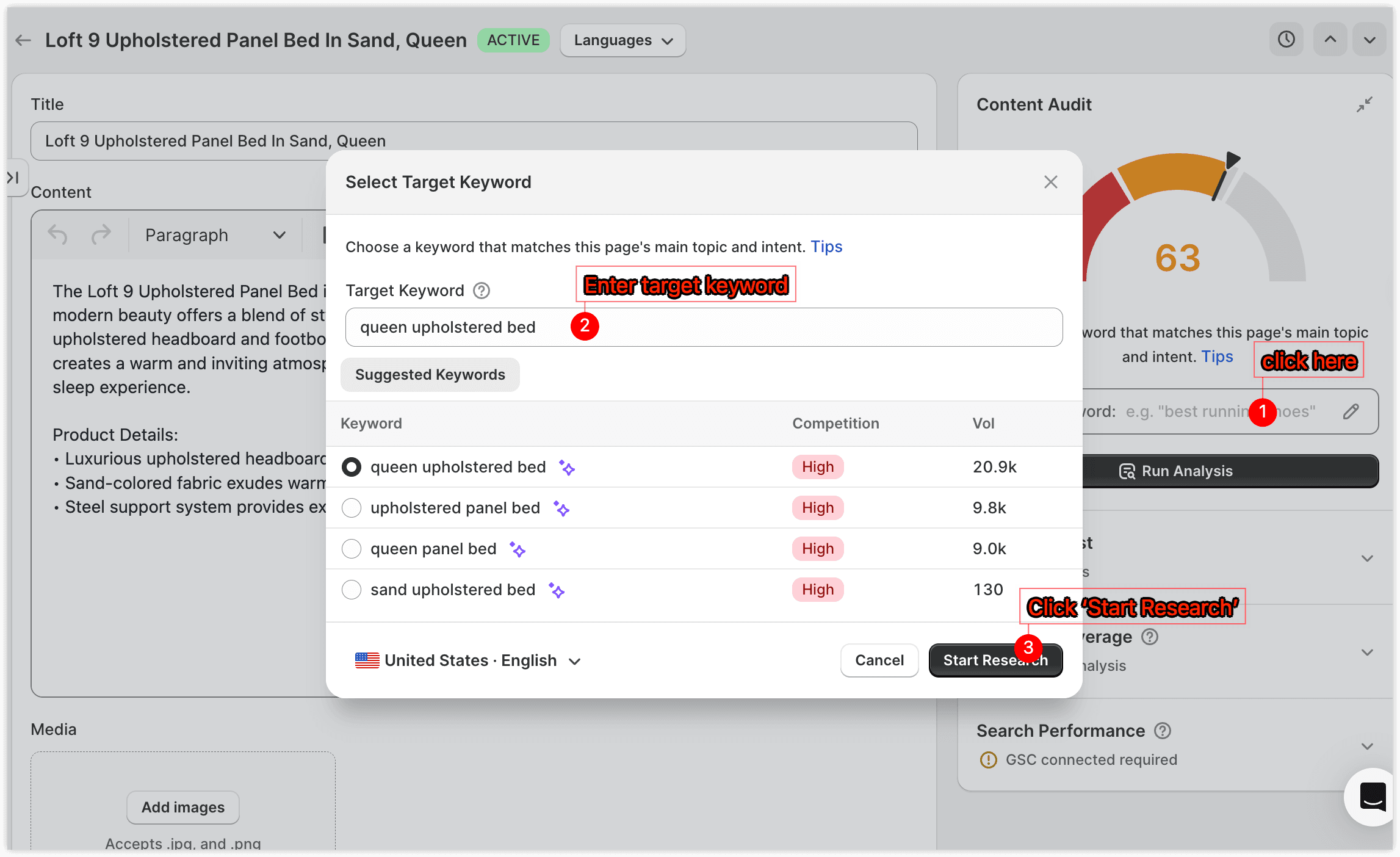
Running an audit is simple: enter a keyword, then wait about a minute for the analysis to finish.
Enter the keyword you want this page to rank for, select your target country and language, then click Start Research.
Everything in the analysis—including competitor selection, semantic keywords, search intent, and optimization suggestions—is based on this keyword.
How to pick a good keyword
A good keyword should accurately describe your page while matching what potential customers are searching for.
✅ Recommended: Long-tail, specific keywords with decent search volume and manageable competition
- Example:
slant board exercises for knee pain(specific, with a clear audience)
❌ Avoid: Broad, hyper-competitive keywords
- Example:
shoes,fitness(hard to compete against major brands)
Not Sure Which Keyword to Use?
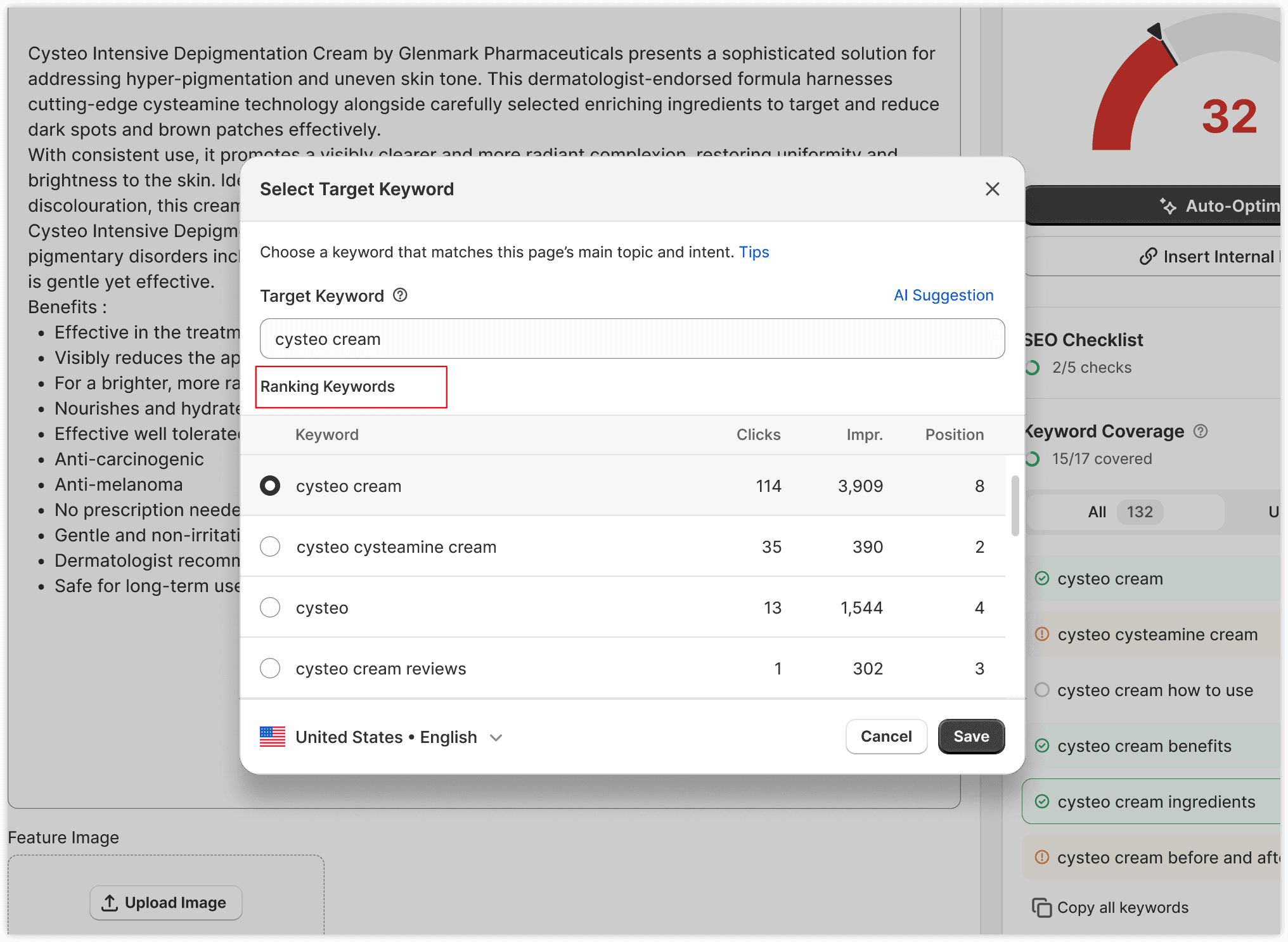
Option 1 — Use Existing Ranking Keywords
If you've connected Google Search Console, SEOWILL automatically displays the keywords your page already ranks for.
When selecting a target keyword, prioritize keywords that:
- Closely match your page's topic
- Already receive impressions or clicks
- Have ranking potential
Optimizing around existing rankings is often the fastest and safest way to gain additional traffic.
Option 2 — Use AI Suggestions
If your page doesn't yet rank for relevant keywords, click AI Suggestions.
SEOWILL analyzes your current page and recommends keywords that best match your page. Choose the suggestion that most accurately reflects your page.
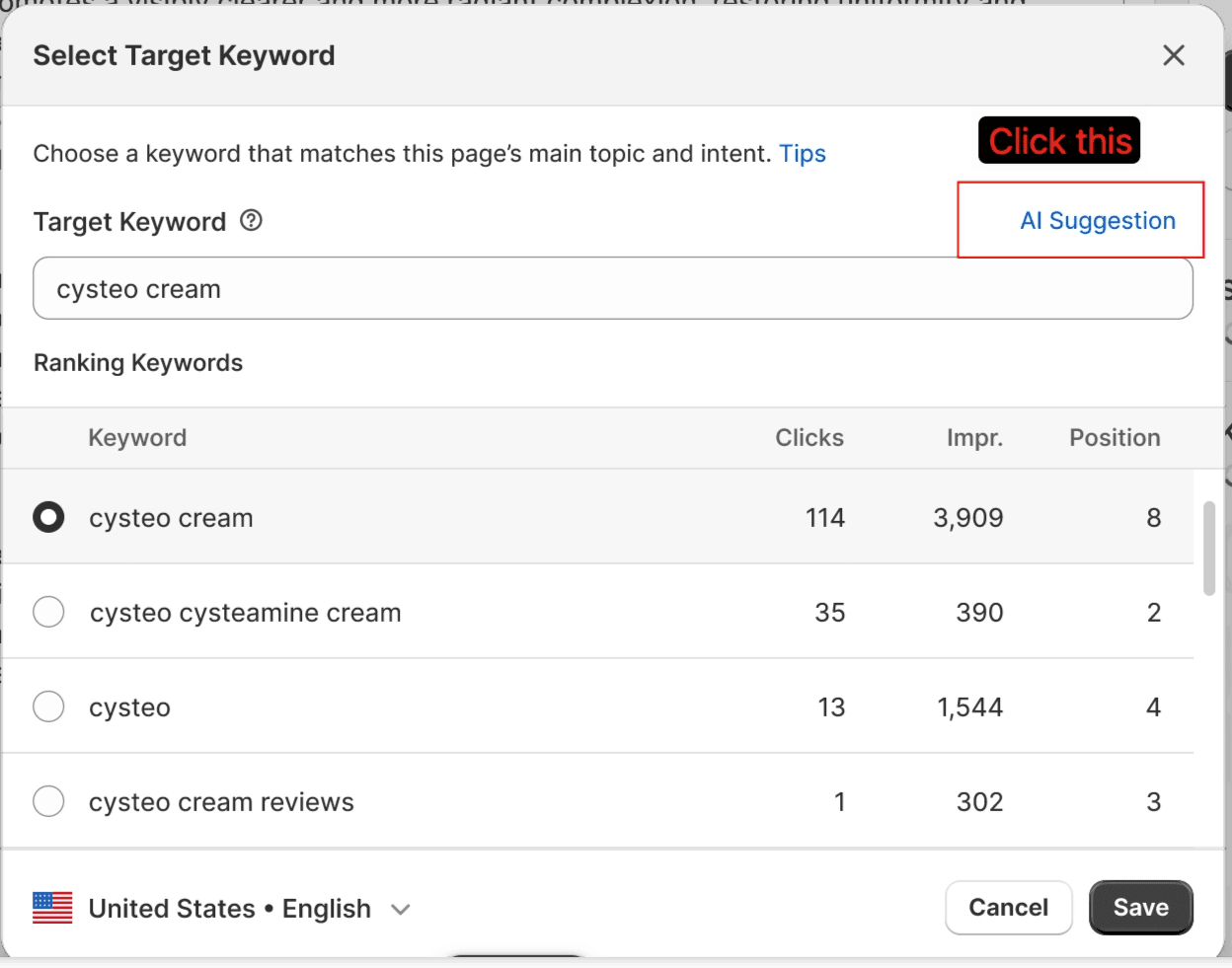
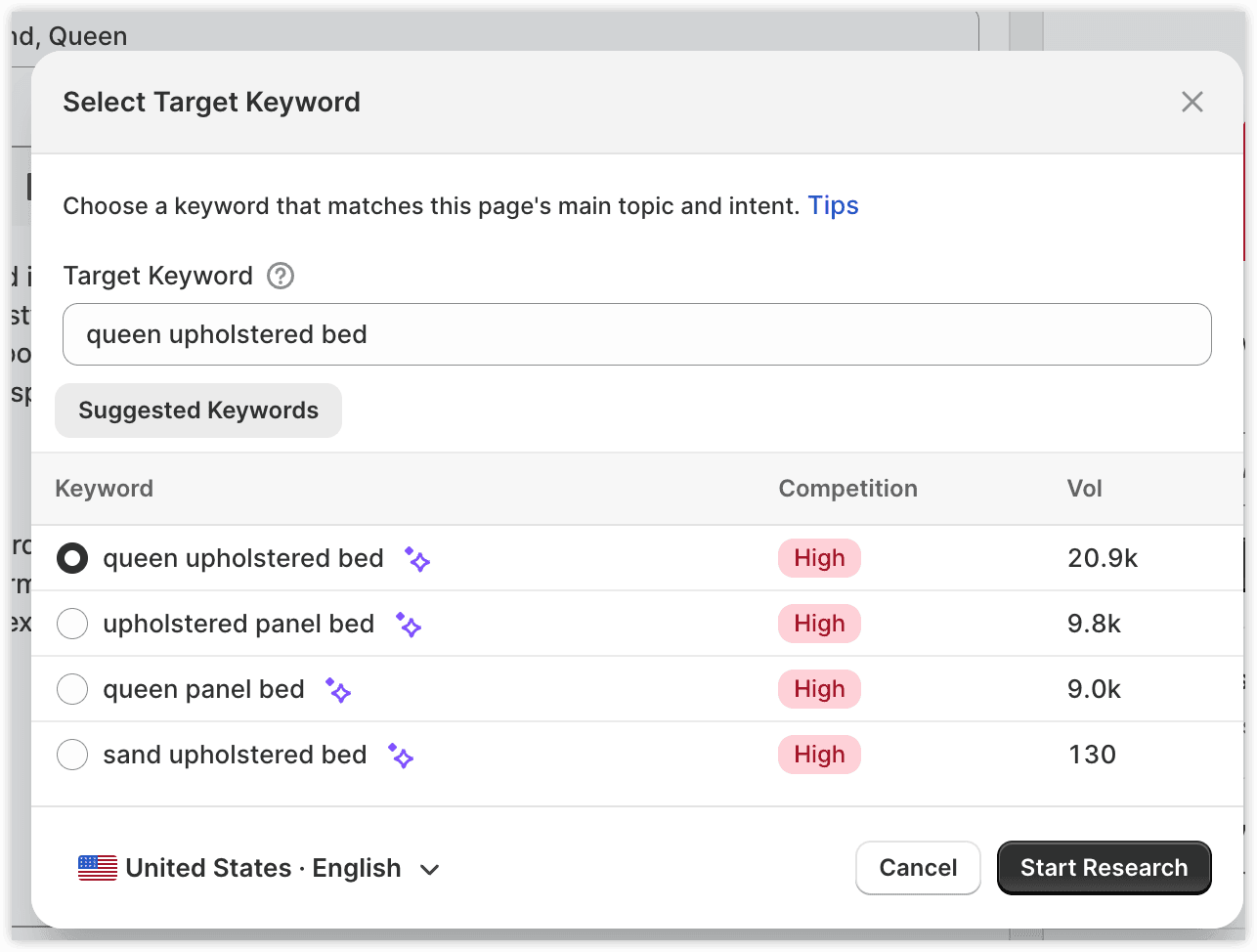
Once you click Start Research, SEOWILL automatically searches Google's top-ranking pages, groups them by search intent, picks the intent closest to your page, and extracts semantic keywords, content structure, and optimization opportunities. The whole process usually takes about one minute.
Note
💡 What is Search Intent?
The same keyword can mean different things to different searchers. For "slant board," some want tutorials, some want to buy a product, some want rehab guidance. We group competitors by intent and automatically select the one closest to your page.
3. Optimize Your Content
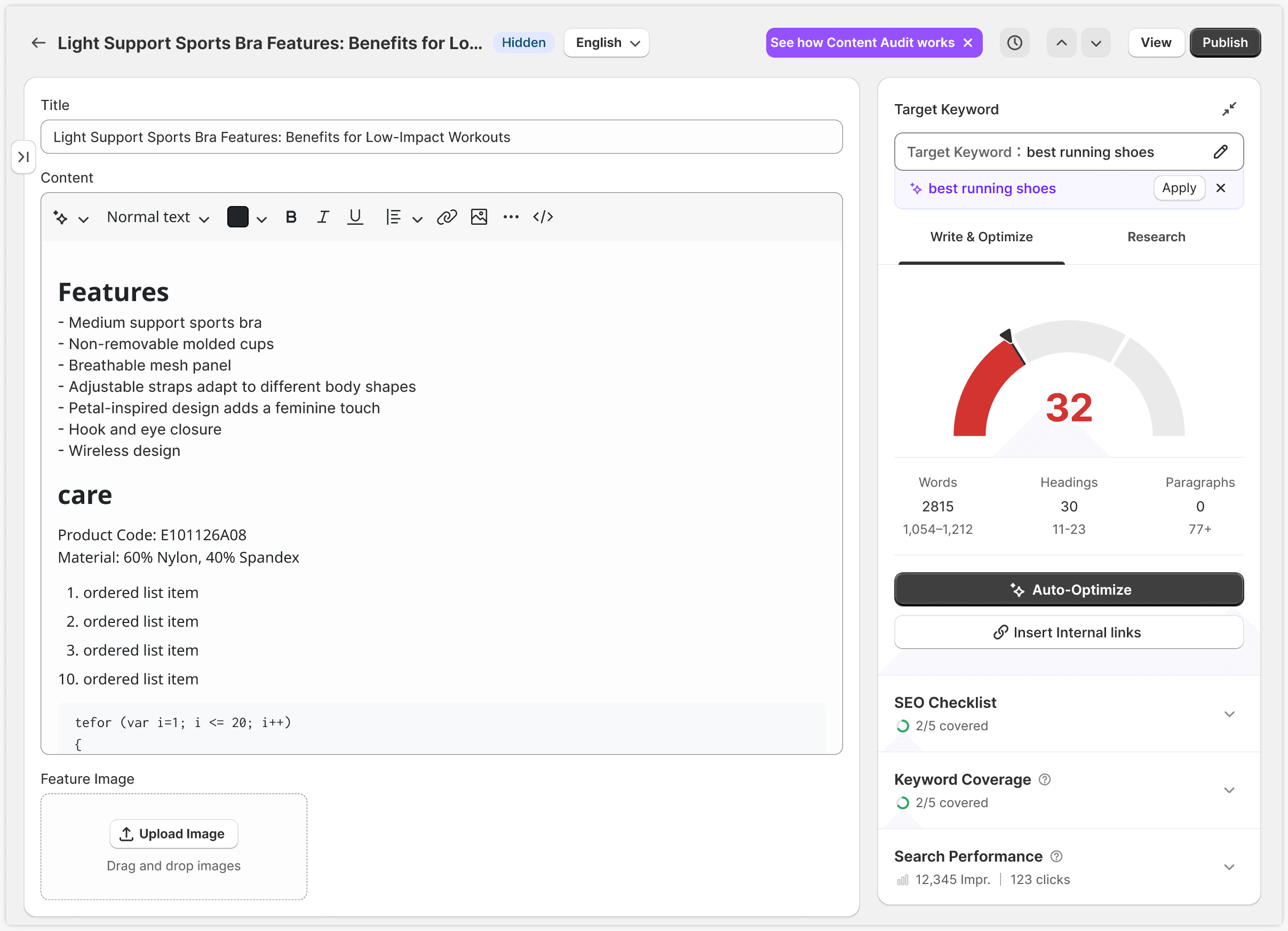
When the analysis completes, your Content Score appears in the upper-left corner of the editor, and the recommendation panels appear on the right.
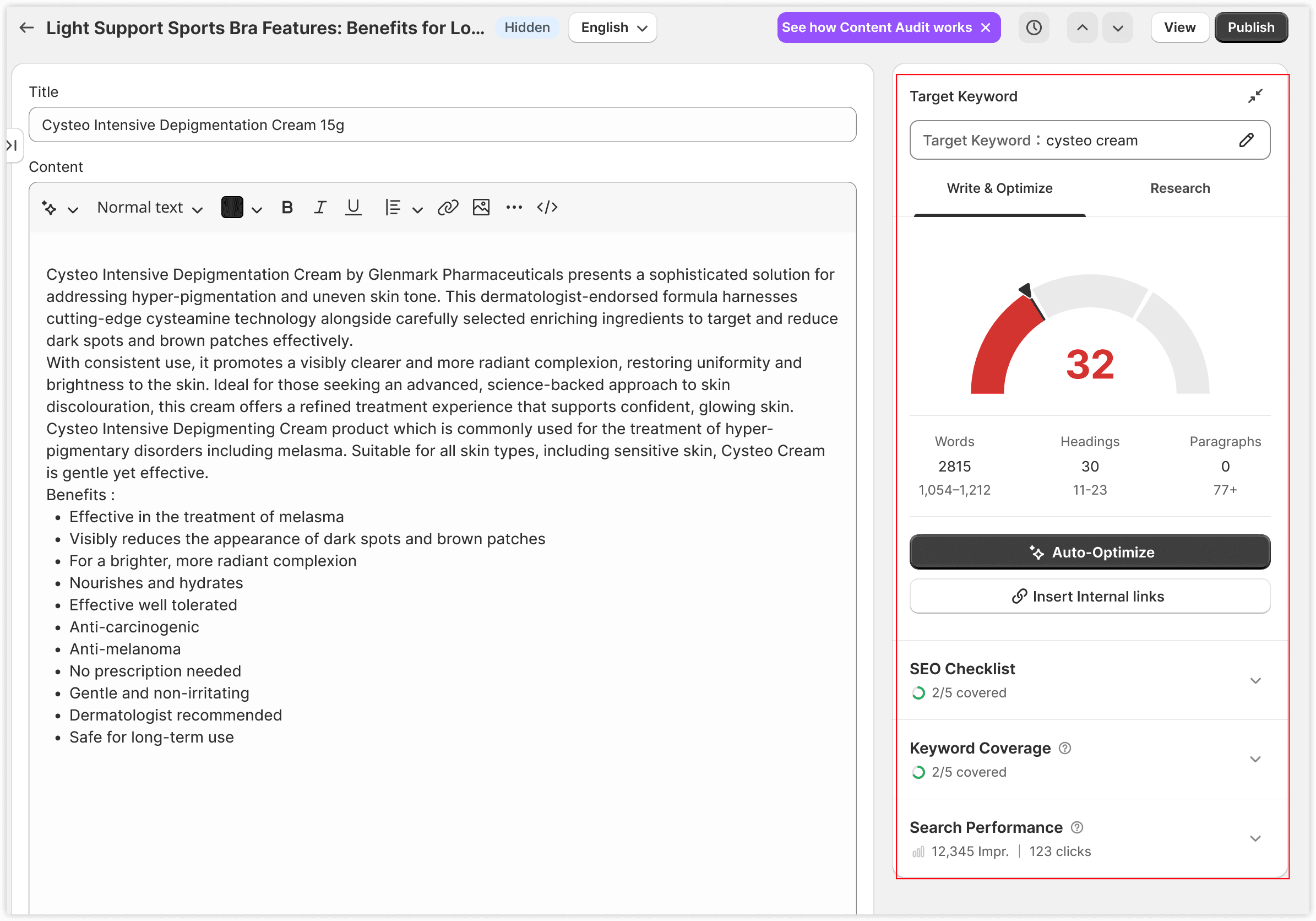
Your Content Score indicates how closely your page aligns with the recommendations generated from top-ranking competitors. Use it as a guideline rather than a ranking factor.
- Below 33 — your content is not optimized enough. Consider expanding your content and covering more relevant topics and entities.
- 33–66 — your content is reasonably well optimized, with opportunities for further improvement.
- Over 66 — your content is generally well aligned with the recommendations and is ready for final review before publishing.
Each panel on the right focuses on a different aspect of your page and explains what can be improved. We recommend reviewing these suggestions before using Auto-Optimize.
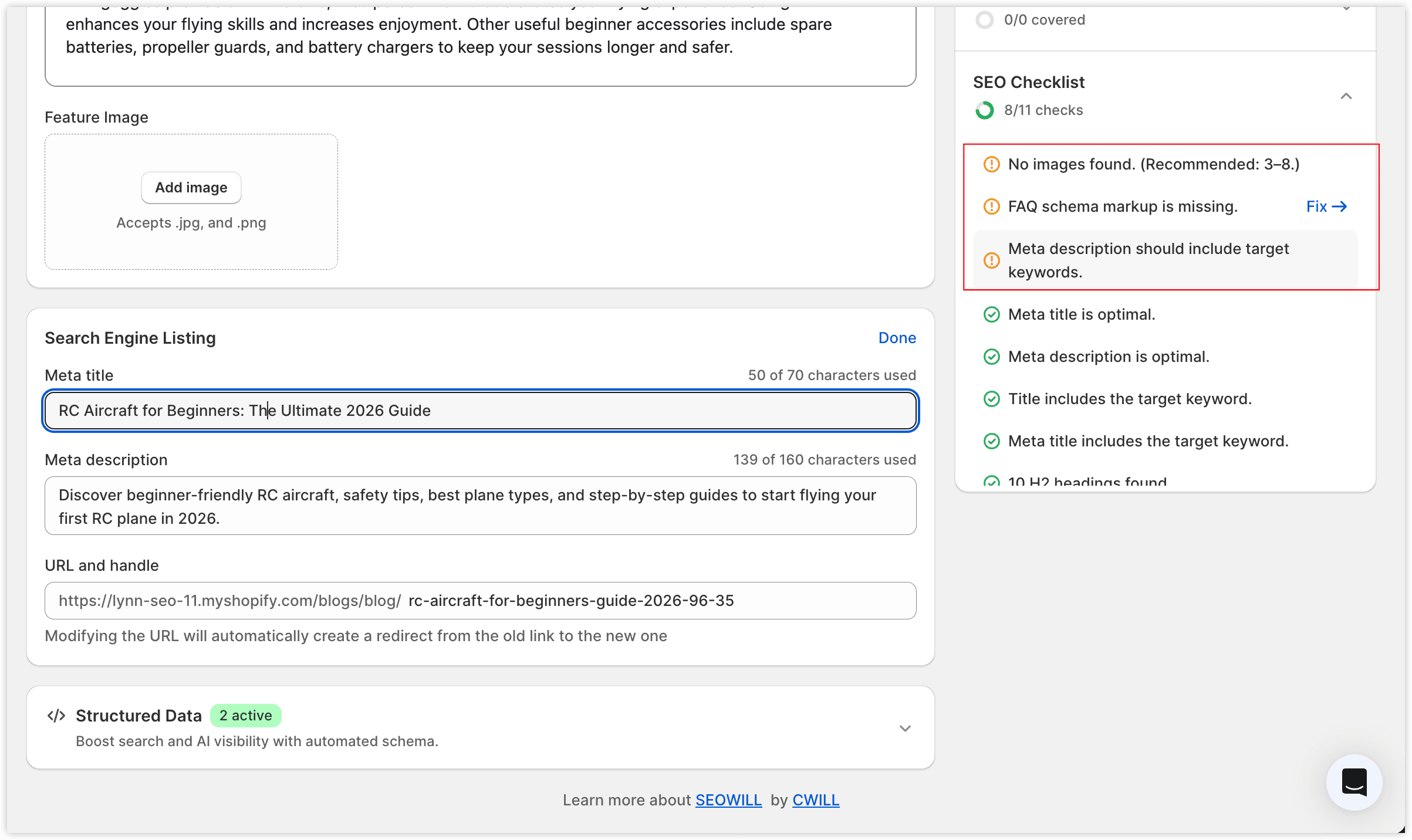
3.1 SEO Checklist
The SEO Checklist evaluates whether your page follows modern SEO and AI search best practices. Typical checks include: including the target keyword in your title, adding image alt text, enabling structured data, and so on.
👉 What to do:
Work through the listed issues one by one.
3.2 Keyword Coverage
Keyword Coverage analyzes the highest-ranking pages for your target keyword and identifies the concepts they frequently mention.
Instead of simply counting keyword frequency, SEOWILL extracts:
- Important entities
- Related concepts
- Missing content opportunities
These insights help you write more complete content that better matches what users expect to find.
👉 What to do:
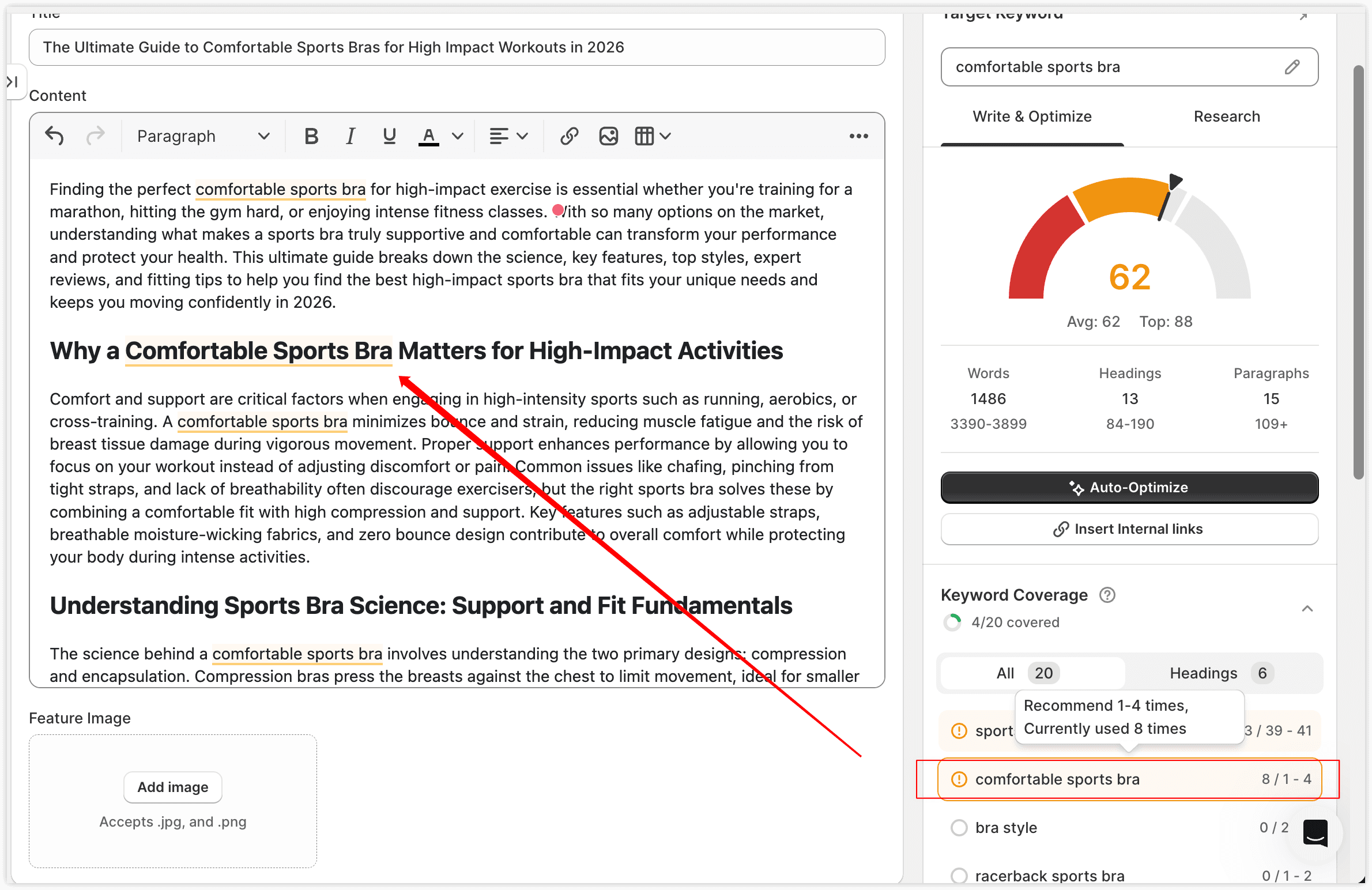
Review the recommended keywords and naturally incorporate the ones that fit your content.
Note
→ For detailed guidance, see How to Use Semantic Keywords below.
Why am I seeing "No keywords found"?
Occasionally, SEOWILL may not be able to generate semantic keyword recommendations. This usually happens because:
- The top-ranking pages block content crawling.
- Google's results are dominated by YouTube videos, Reddit discussions, or community forums.
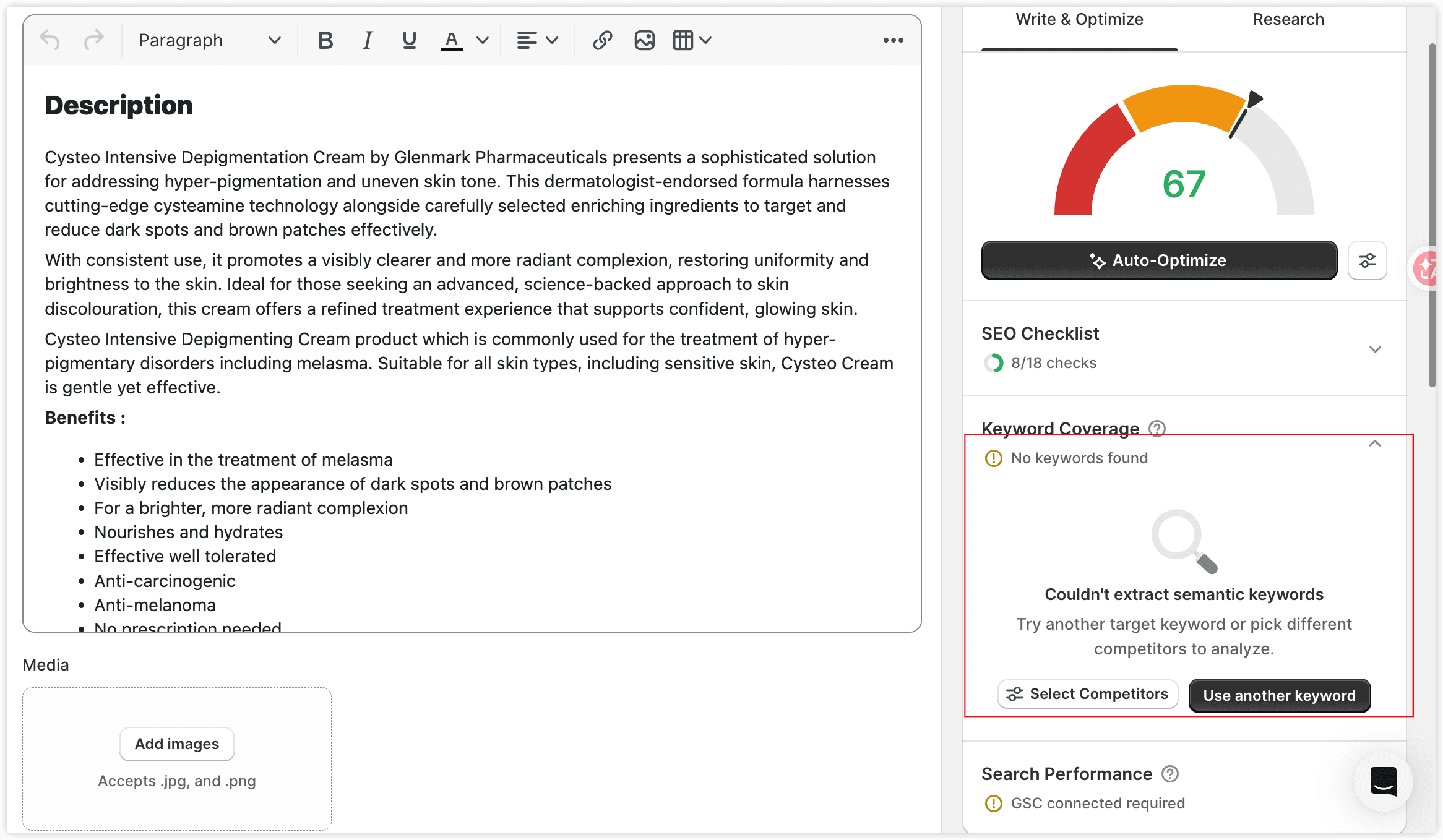
If this happens, try one of the following:
- Choose a more specific target keyword.
- Select a different competitor group that has content.
This is caused by limited data availability rather than an issue with your page.
3.3 Search Performance
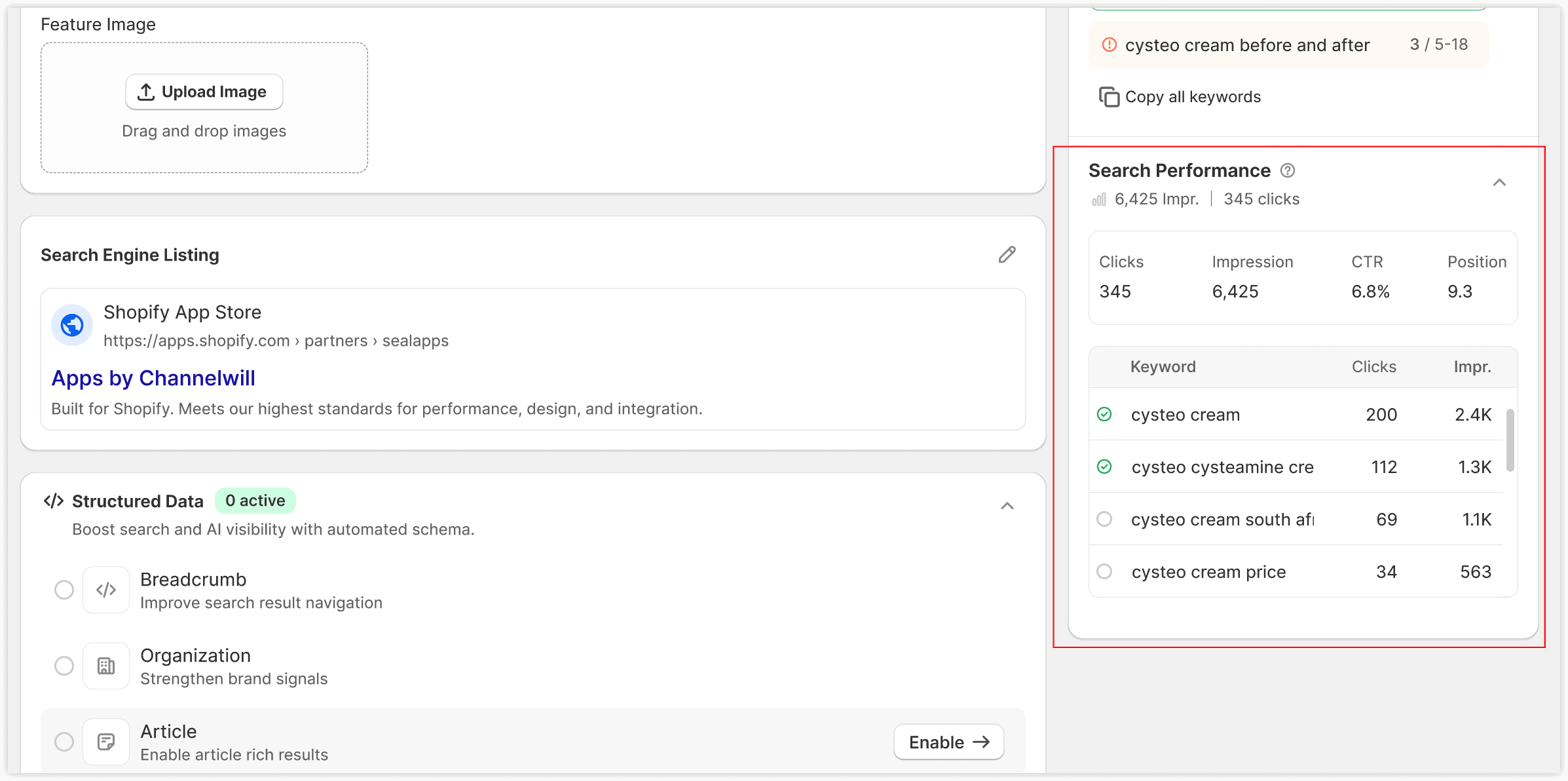
This section is available after connecting Google Search Console.
Unlike competitor analysis, the data shown here reflects your own page's actual performance in Google Search.
👉 What to do:
Before making major content changes:
- Review your existing ranking keywords.
- Keep important topics that already generate impressions or clicks.
- Expand your content instead of replacing high-performing sections.
- Add new information without removing valuable existing content.
This approach is generally safer than rewriting a page from scratch.
3.4 Content Structure (Blog Pages Only)
Content Structure is available for blog posts.
SEOWILL compares your article with selected competitors and recommends a suitable range for: word count, heading count, and paragraph count.
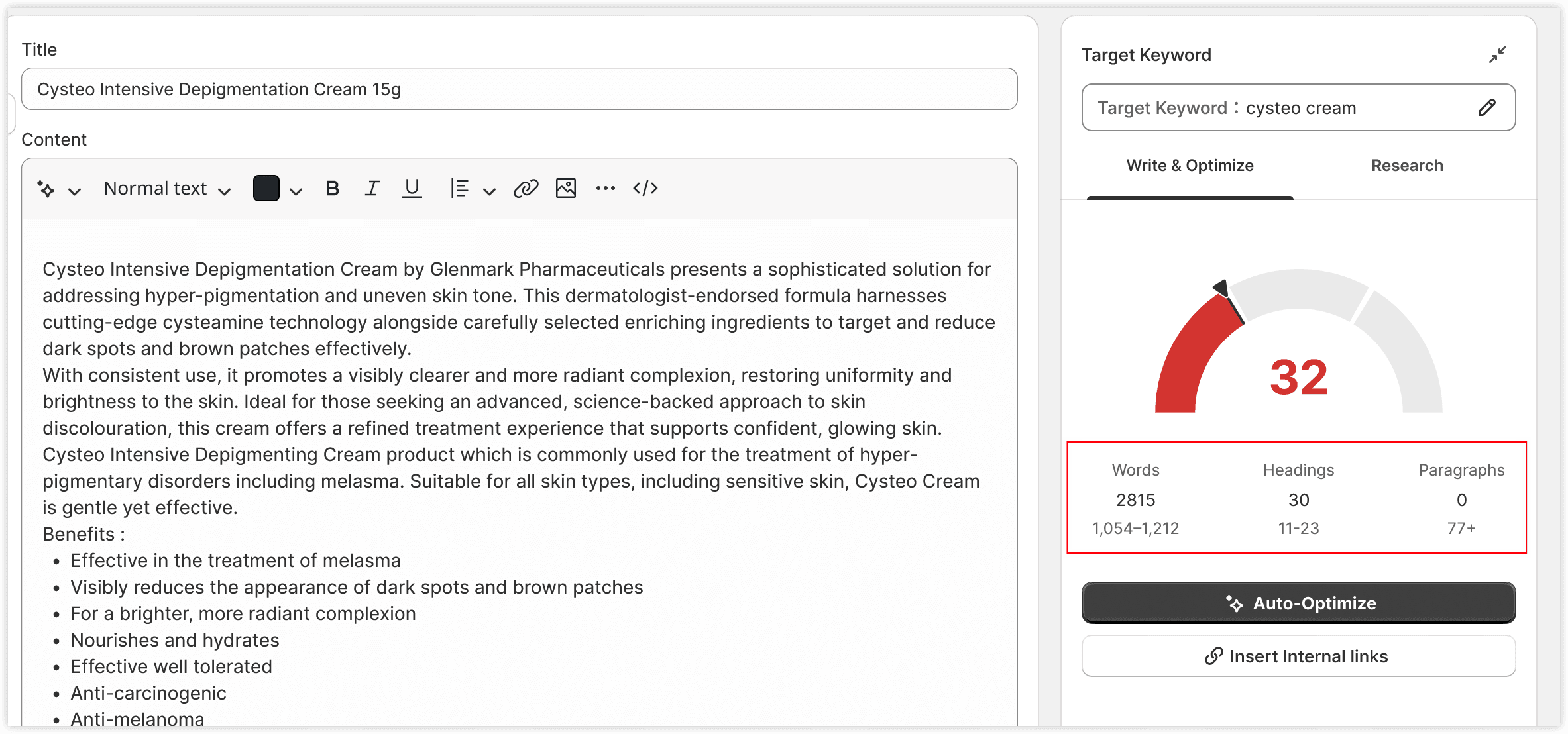
These metrics help you understand how comprehensive your article should be compared with other pages targeting the same search intent.
👉 What to do:
Compare against the guide. Add headings if you're short on them; expand sections if your word count is low. But don't force structural changes just to hit numbers — natural flow matters more.
3.5 Auto-Optimize
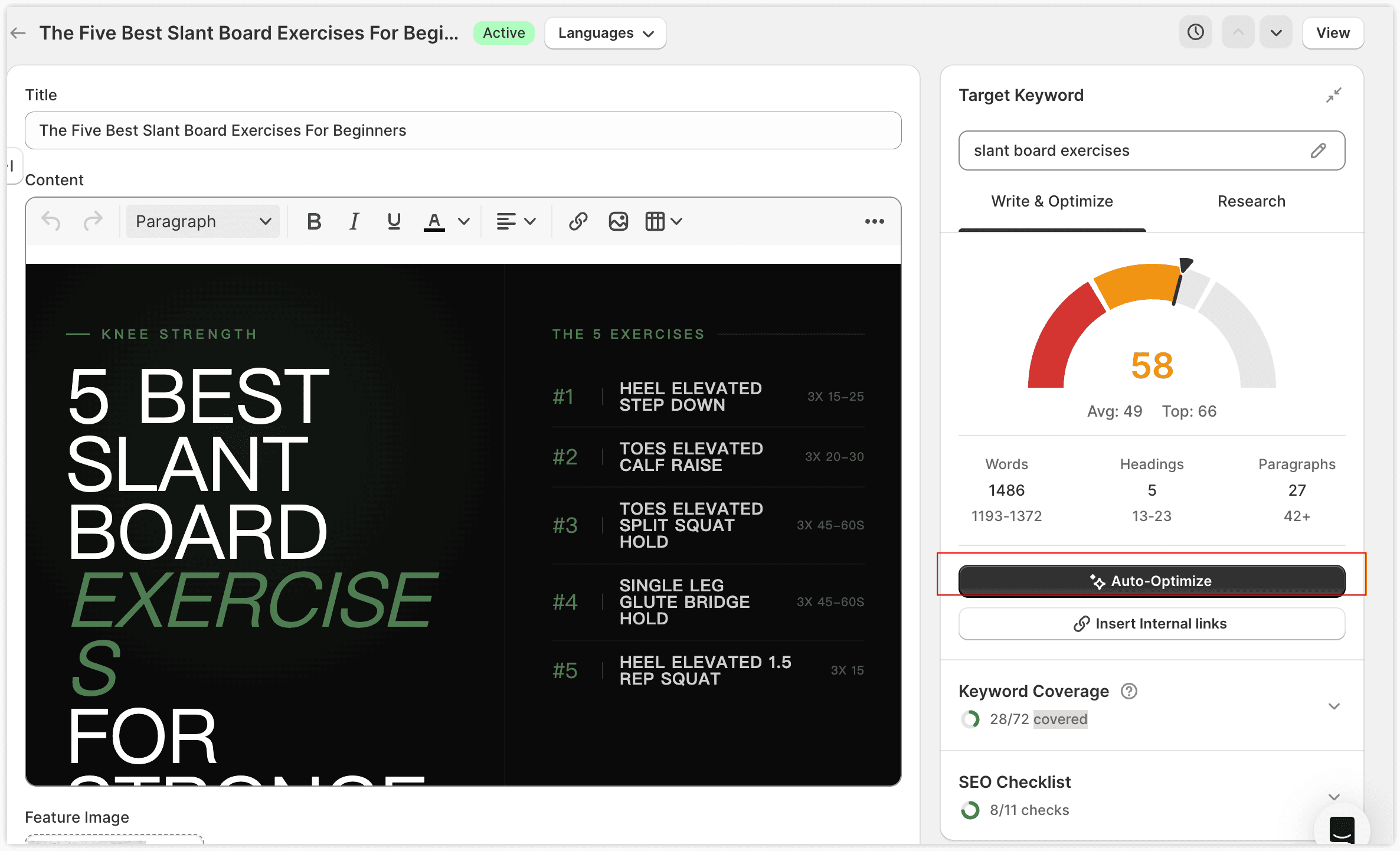
Once your page is written, click Auto-Optimize. The algorithm analyzes your content and inserts relevant semantic terms to enrich it.
Note
🔒 Don't worry — it won't ruin your page.
Auto-Optimize only inserts terms naturally into your existing paragraphs. It doesn't rewrite your sentences and doesn't change your tone or meaning. You can preview every change individually and undo any of them.
How to use it:
Click Auto-Optimize
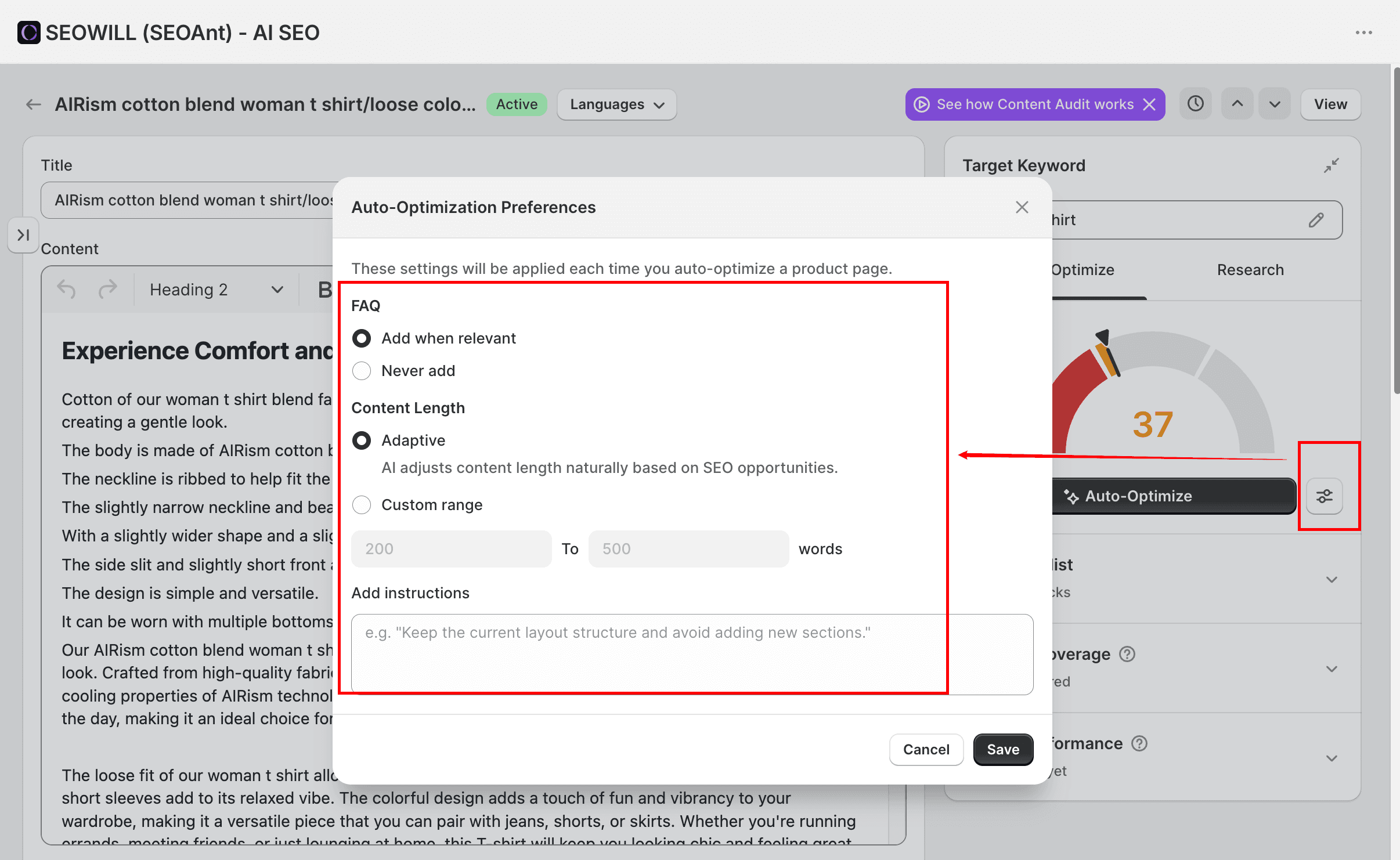
Tip: Before optimizing, you can set your preferences for the FAQ and content length based on your needs, and add any additional instructions if necessary.
Click Compare on any section to see exactly what changed
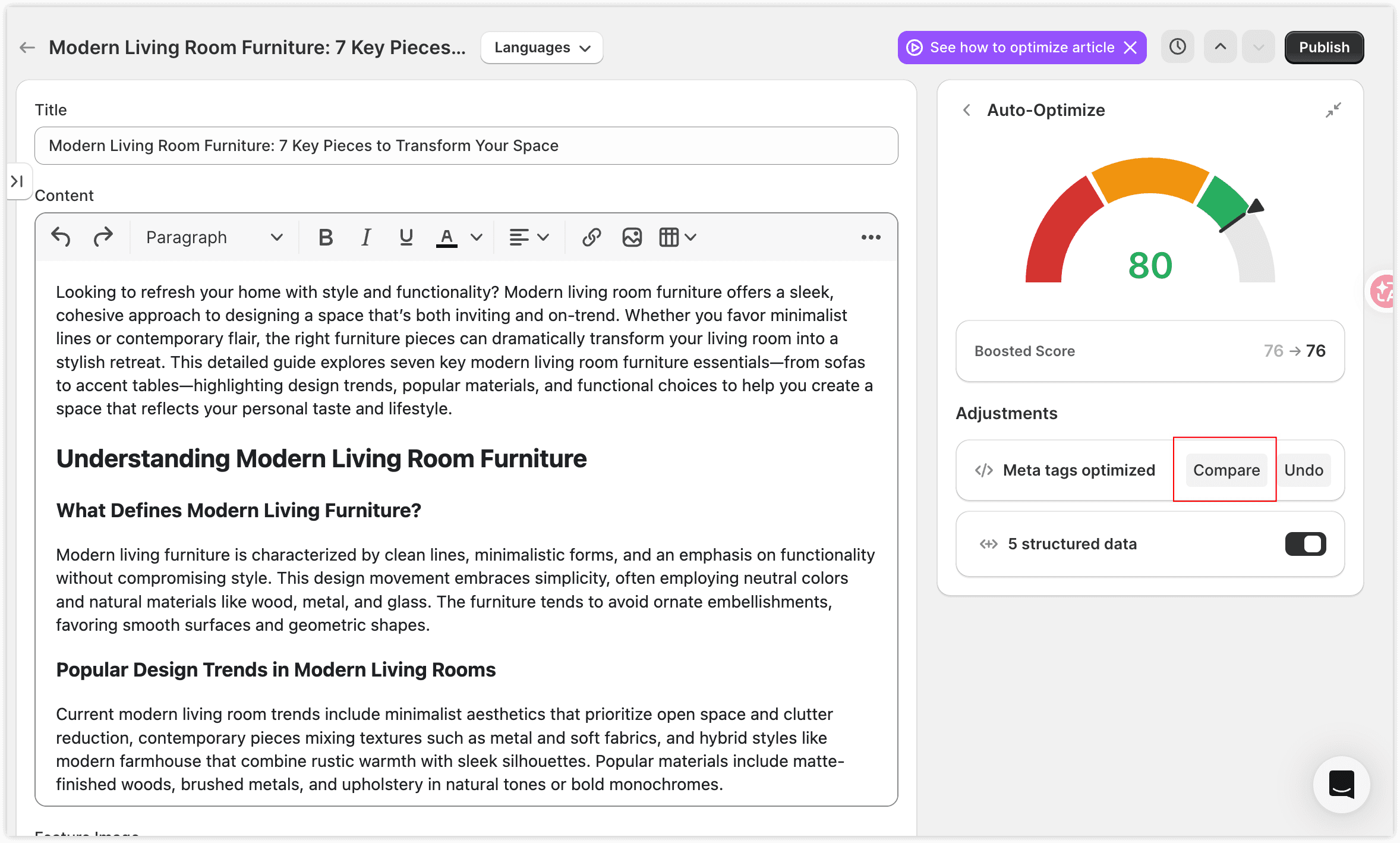
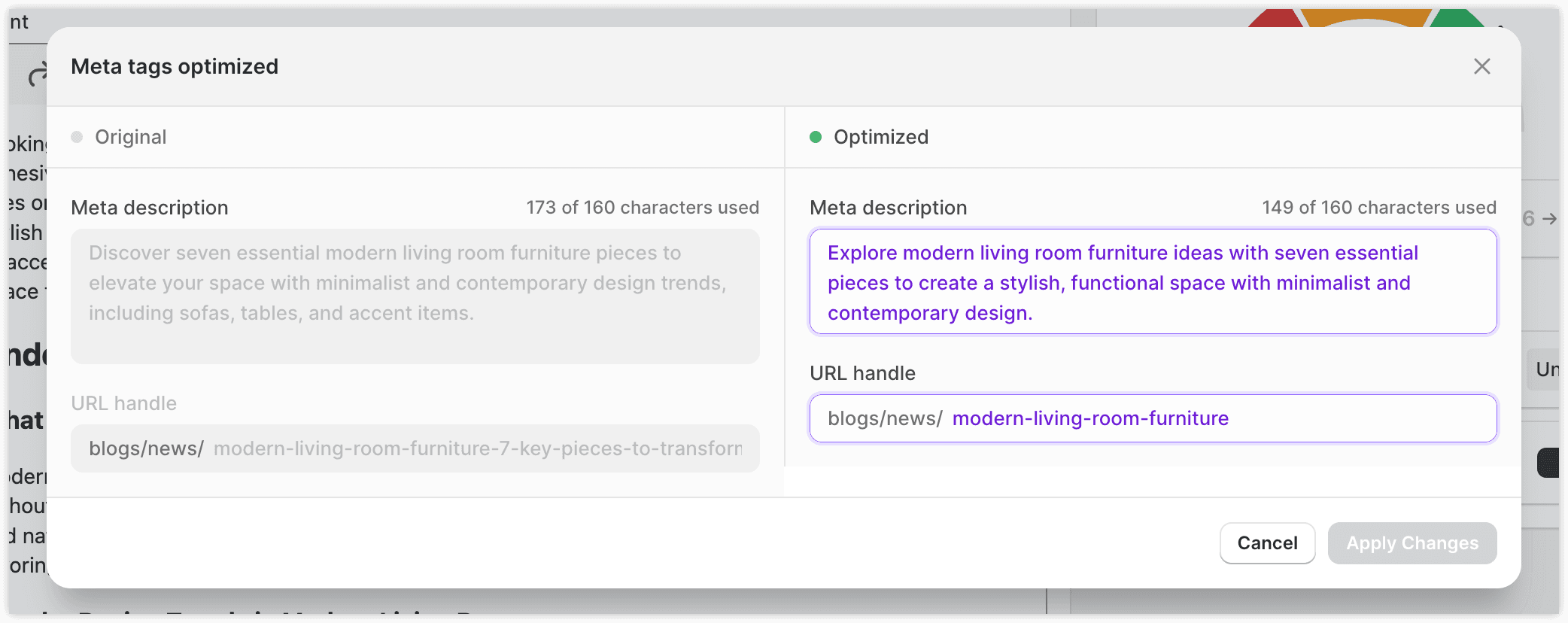
Click Undo on any change you don't like
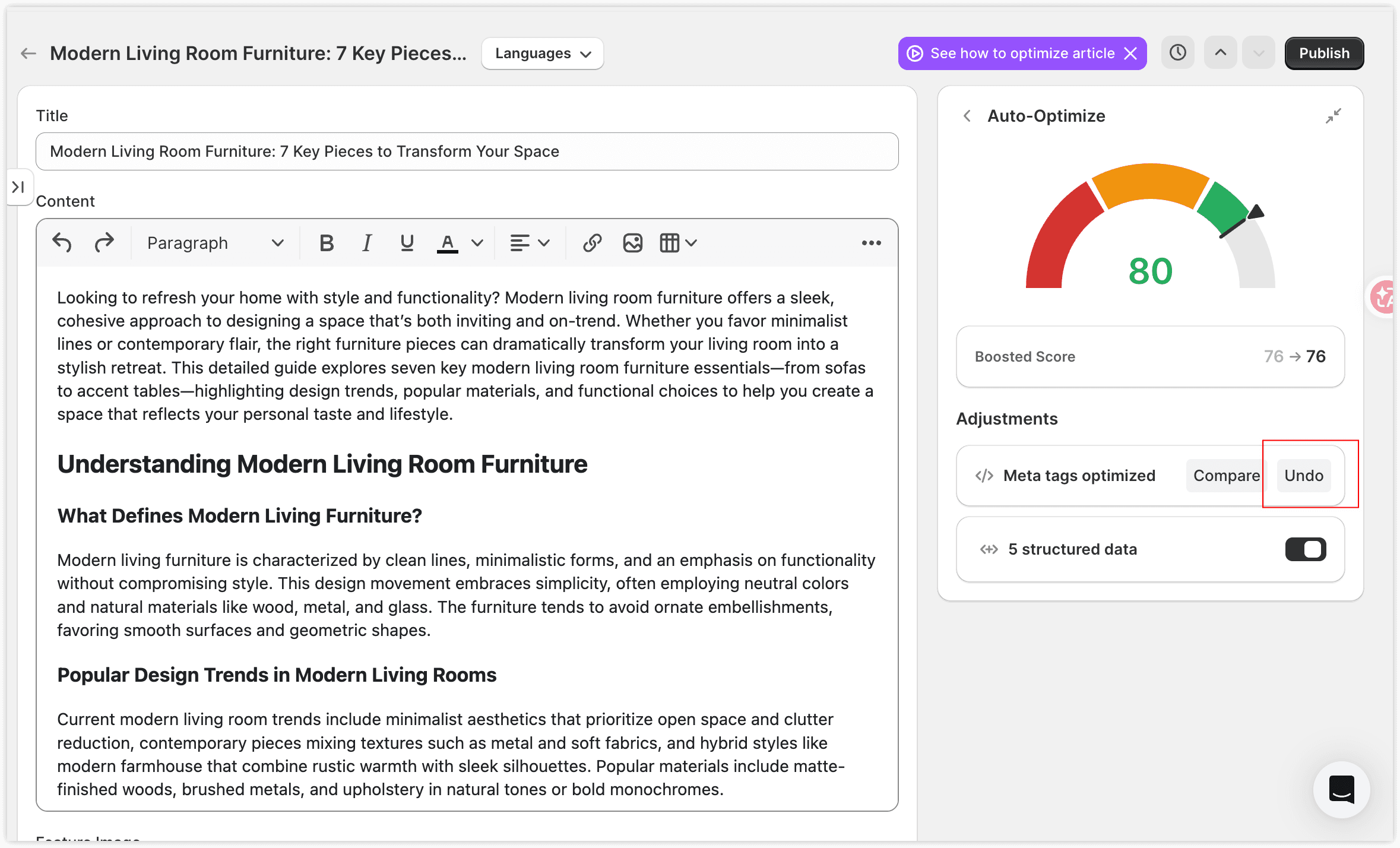
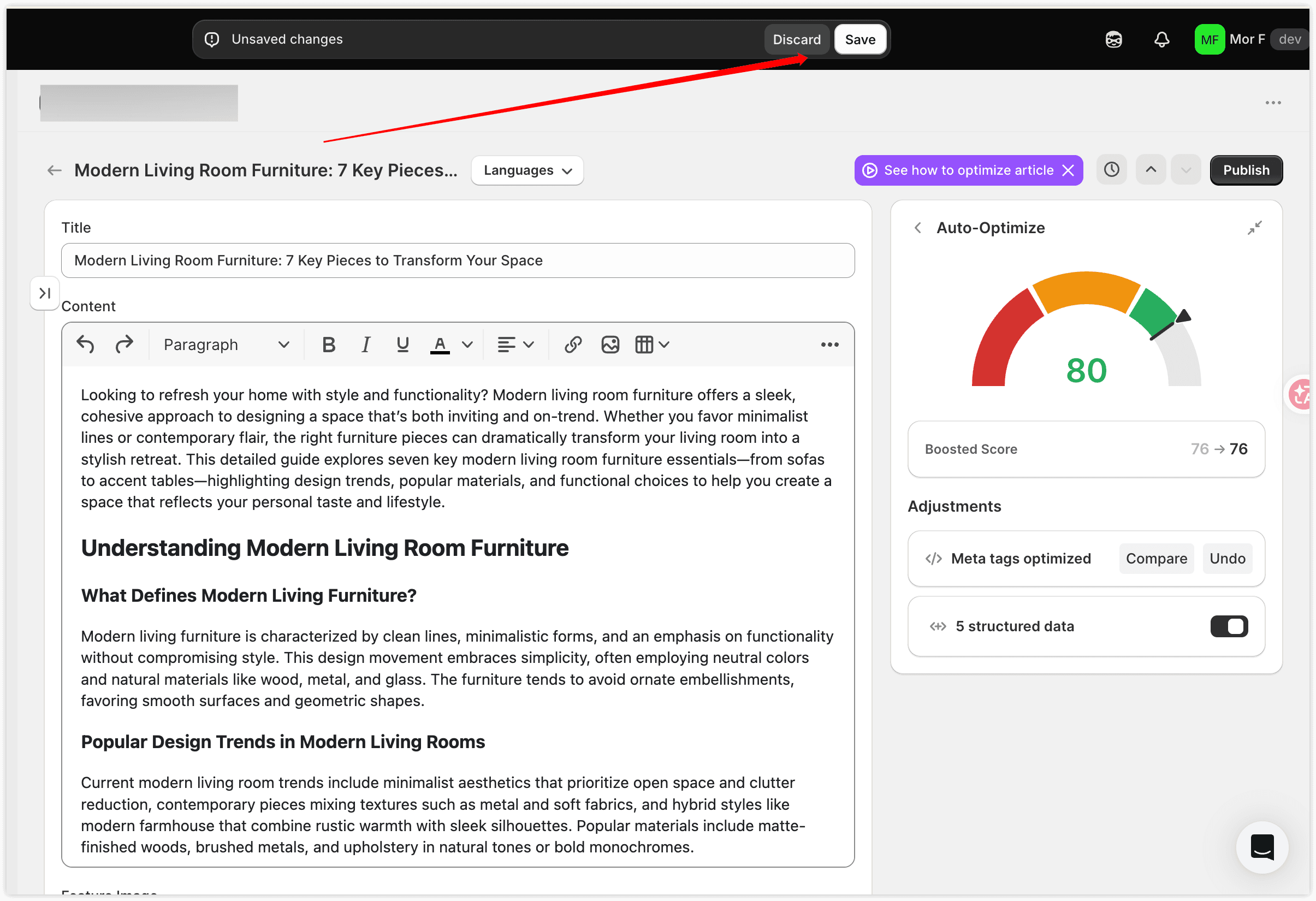
Click Save and Close when you're happy with the result
3.6 Insert Internal Links (Blog Pages Only)
Add Internal Links is available for blog articles.
Internal linking helps search engines understand your site structure and keeps readers engaged with more of your content.
How to use it:
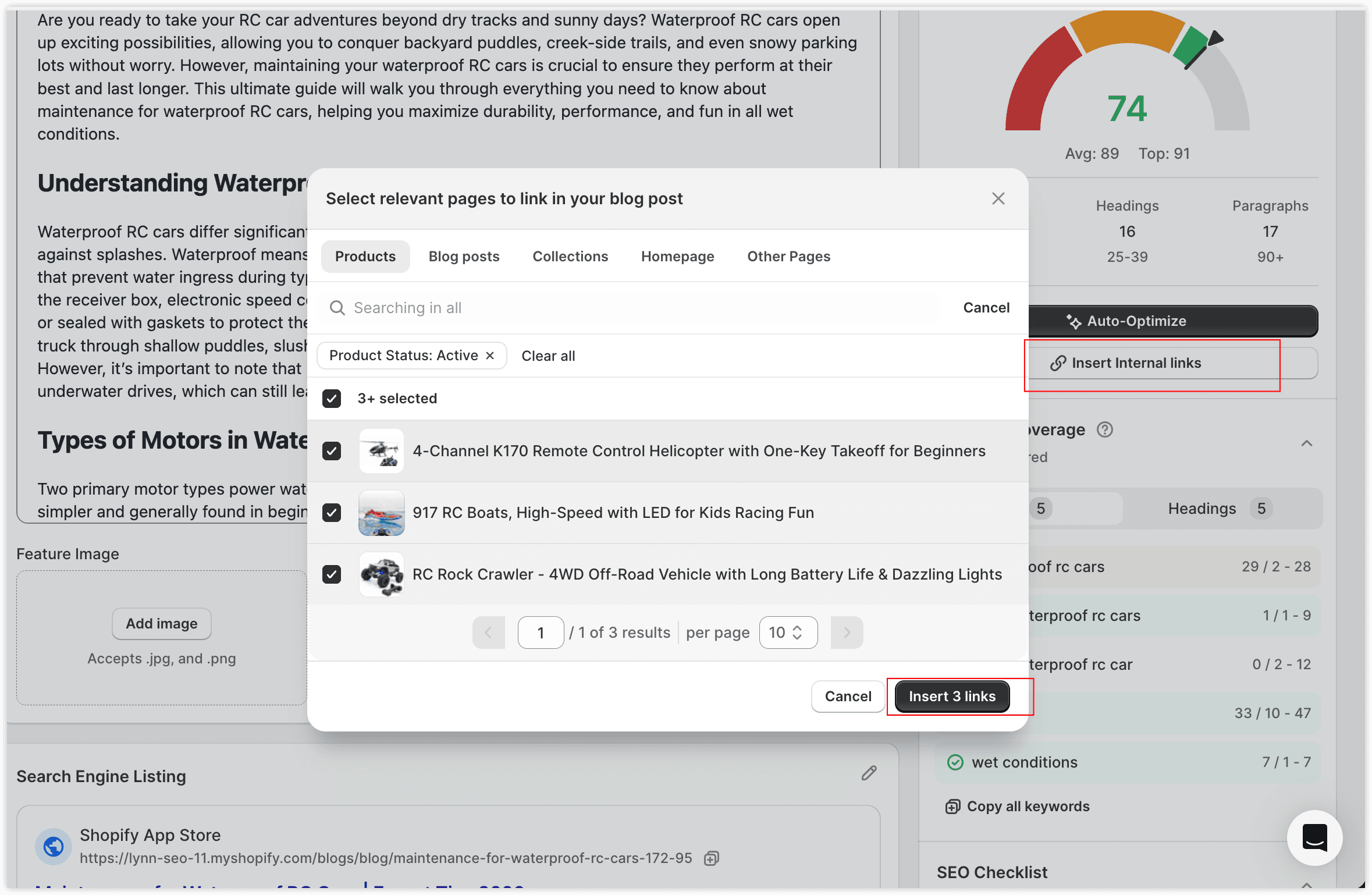
- Click Add Internal Linking
- Select the pages you want to link to
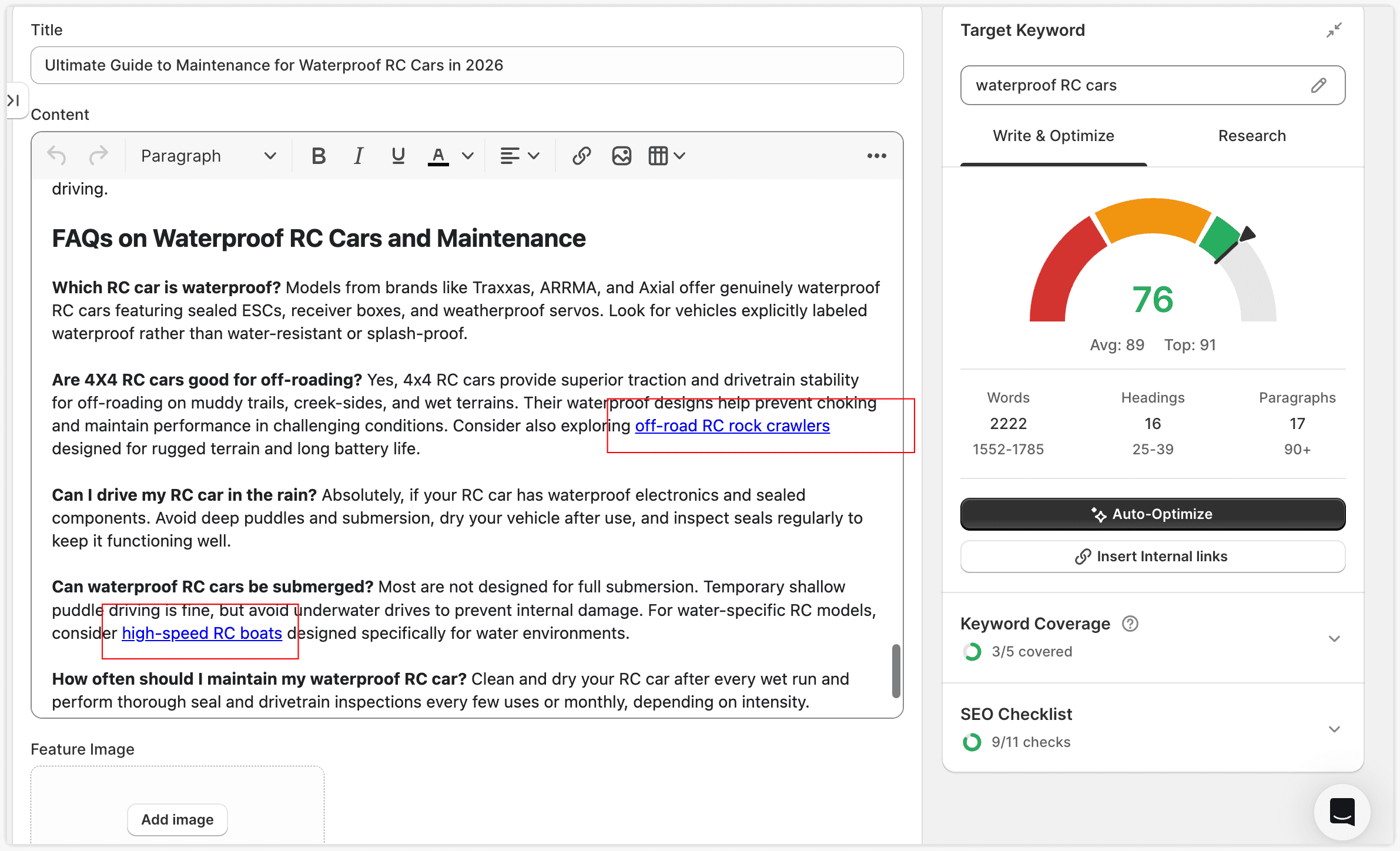
- AI analyzes your article, finds appropriate anchor text, and inserts links automatically
- Review, edit, or discard any suggestions before saving
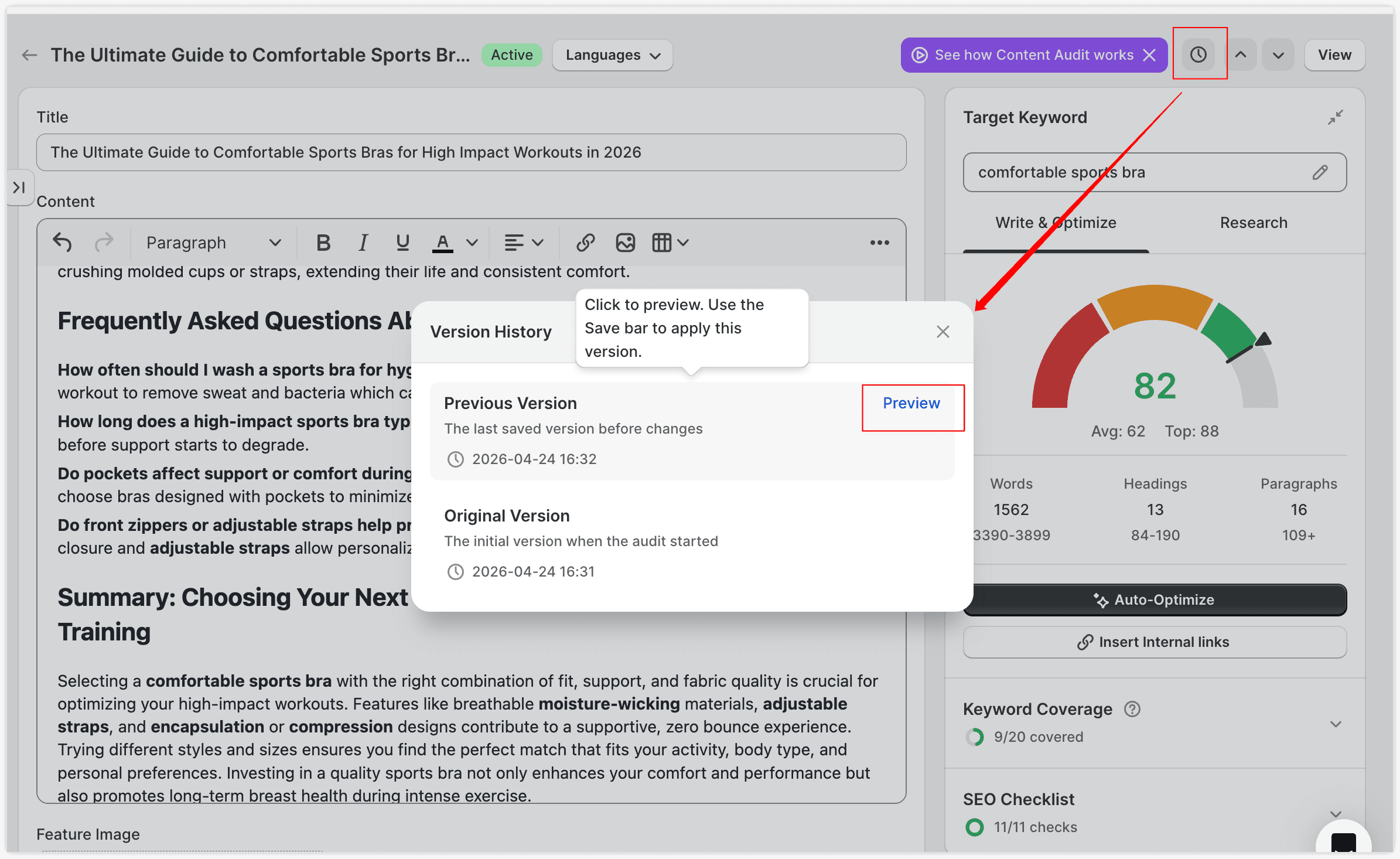
4. How to Restore a Previous Version?
Click the Version icon in the top right to see saved versions:
- Original Version — the first save of your article after you started using SEOWILL
- Previous Version — your most recent save before the current one
Click Preview to view a version's content. To restore it, click Save.
If you run into any issues or have feedback, feel free to reach out through our support channel. We're continuously improving Content Audit and would love to hear what works for you.
5. Research Tab
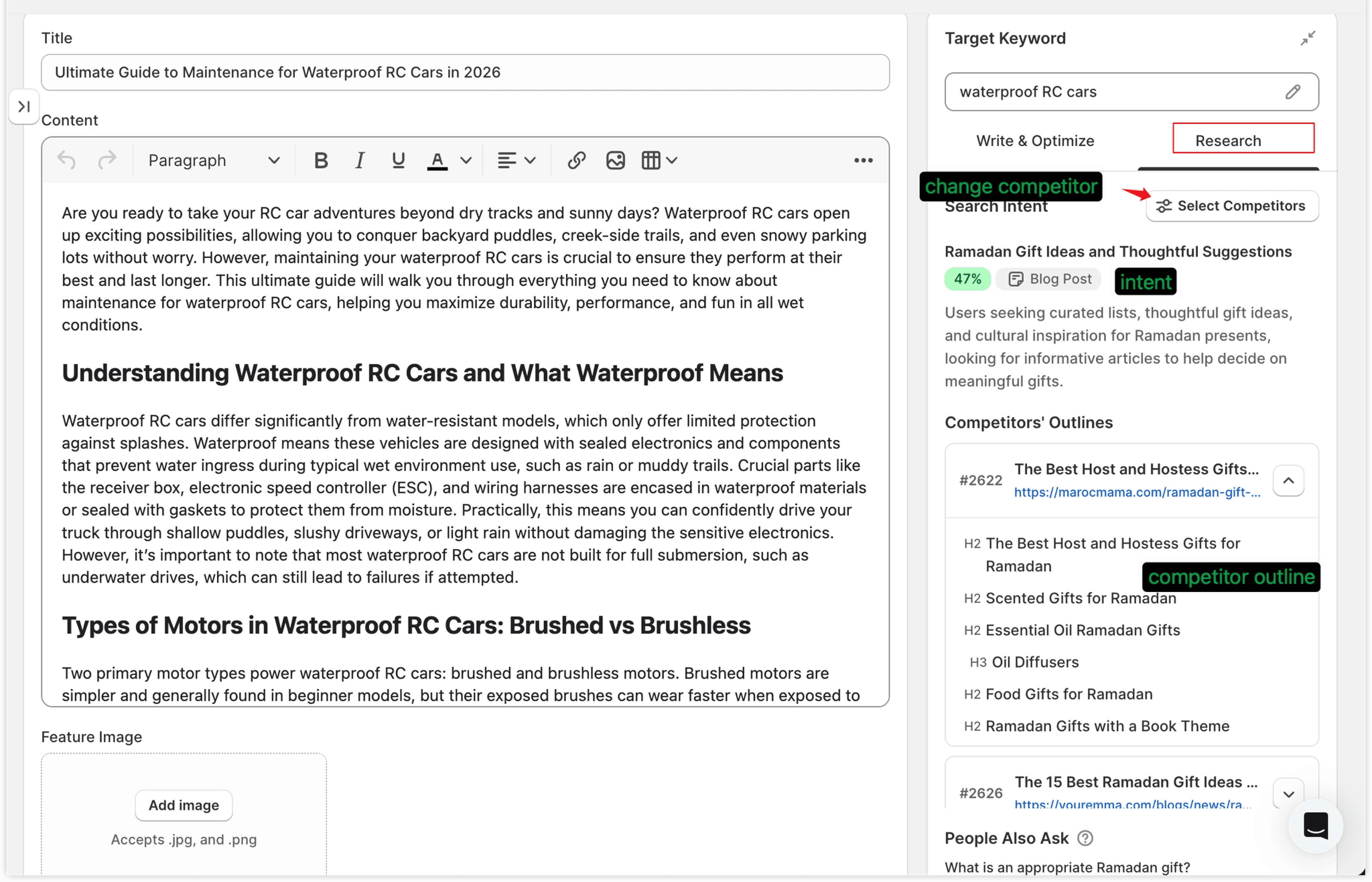
If you'd like to explore your competitors in more detail and gather content ideas, the Research tab provides two valuable resources.
📖 Browse Reference Articles
These are the articles currently ranking on Google for your keyword. Use them to:
- Study their outlines and structure for inspiration
- Spot angles you might have missed in your own draft
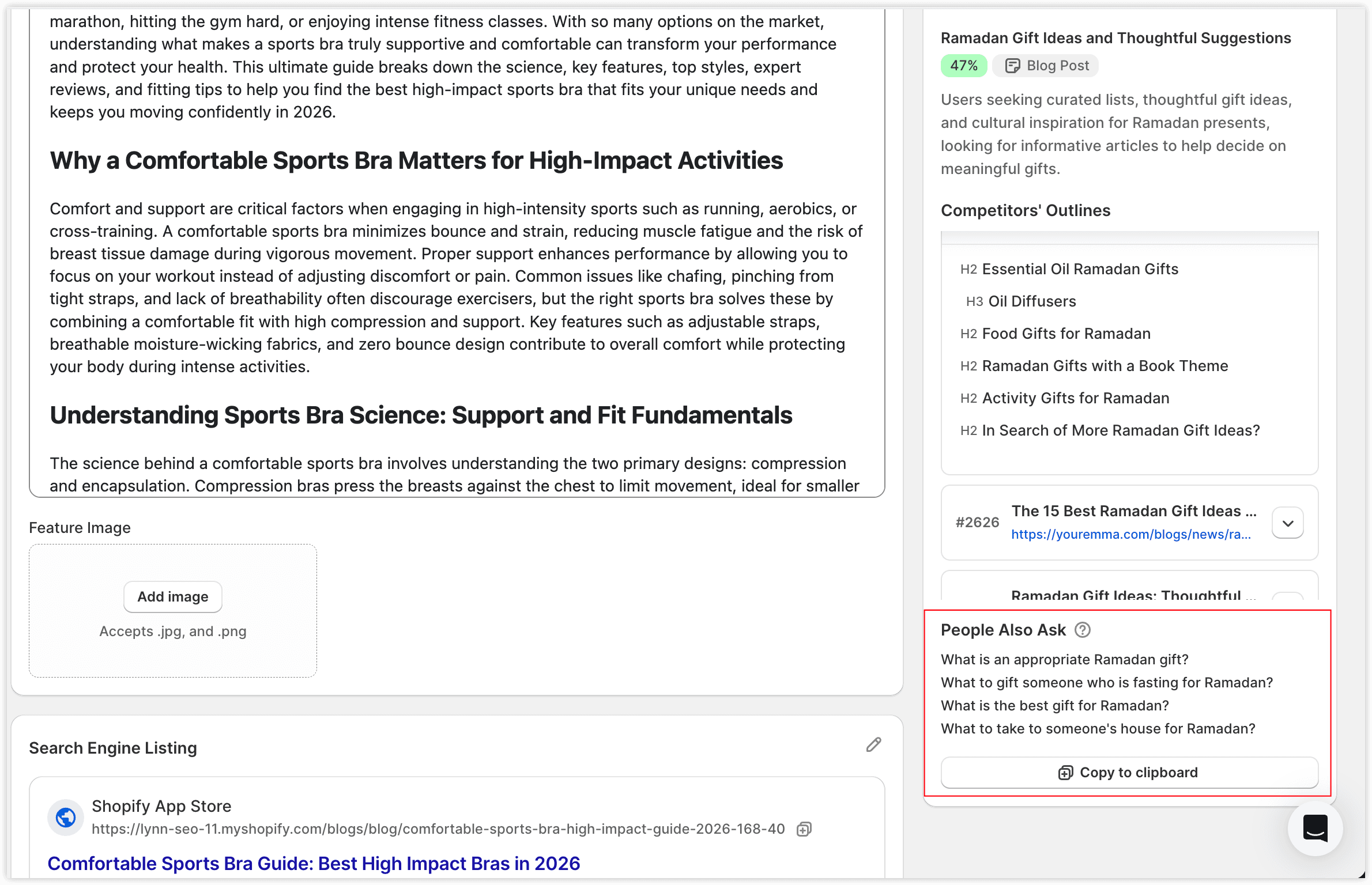
❓ Use PAA (People Also Ask)
PAA shows the related questions real users ask Google about your topic.
Adding these to your article body or FAQ section gives you two wins:
- Broader coverage that addresses what users actually want to know
- A better chance of being cited by Google AI Overview and AI search tools.
Switch Competitors
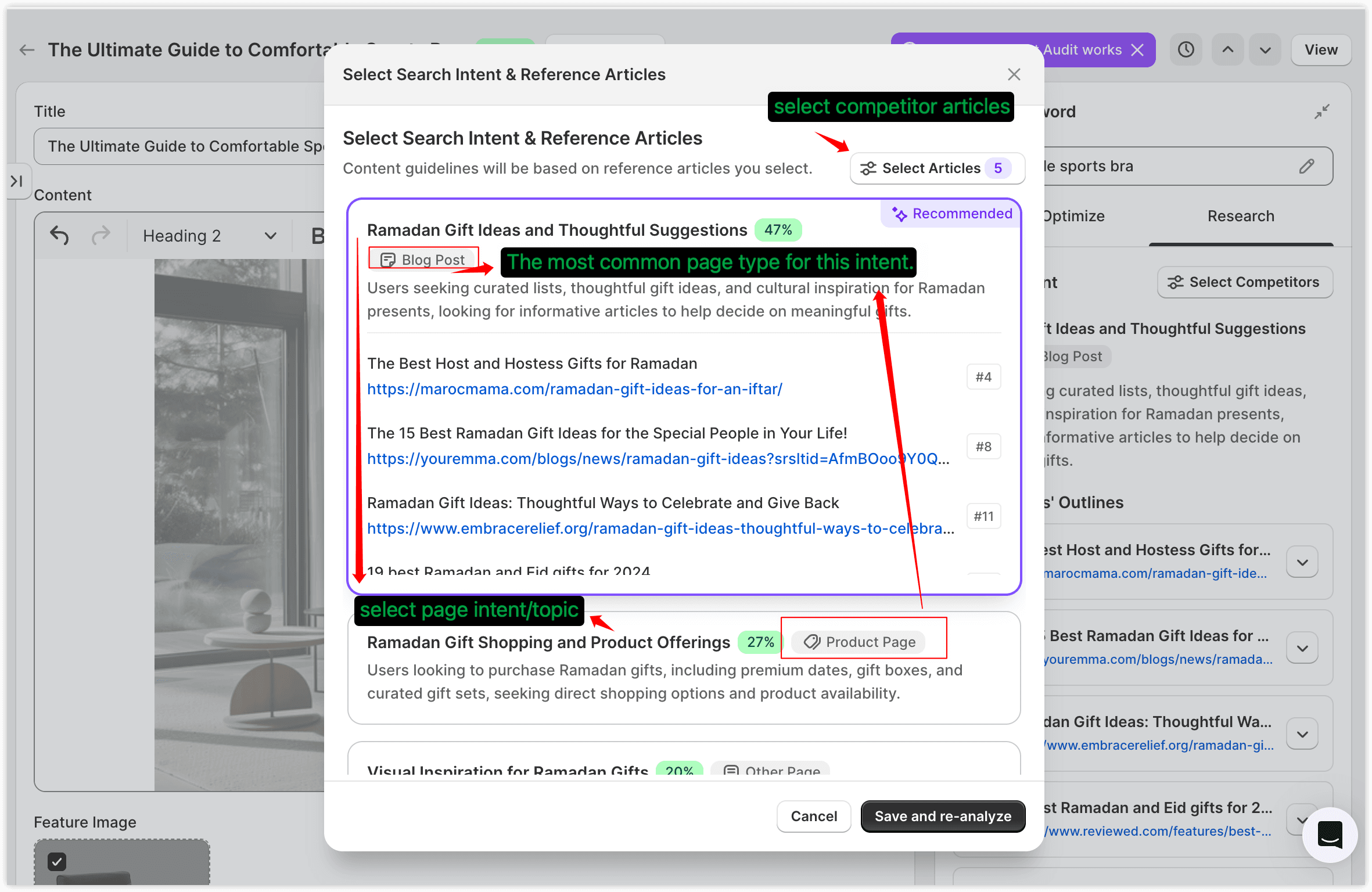
If the auto-selected competitor group doesn't match the direction you want to write in, click Select Competitors to adjust:
- Switch to a different search intent group
- Or hand-pick the most relevant articles within the current group
SEOWILL will recalculate the content structure and keyword recommendations based on your selection. We recommend selecting at least 3 articles for accurate results.
💡 In most cases, the automatic selection is good enough. Only adjust this if the recommended direction is clearly off.